My Account
Each player is able to access the "My Account" branch only if they are authenticated using the username and password they also use to access their account on one of the community's RPG servers. On the left side of the site there is a column containing several tabs with which players can find information strictly about their own accounts.
Note: You can find out what the usual in-game commands that affect your account are by clicking here.
General Information
The page dedicated to general information contains basic things, this information being divided into several tables.
-
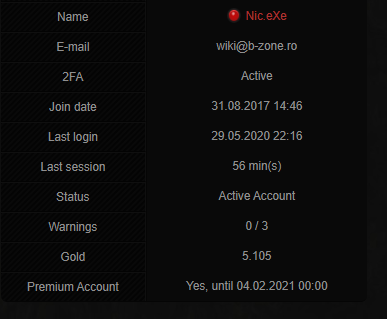
The main table of the page contains the most important characteristics of an account (image #1):
- Player name
- Email address attached to the account.
- 2FA status (active/inactive).
- Account registration date on the server.
- Date when the player last connected to the server.
- Duration of the last session in game.
- Account status (active/banned).
- Number of warnings received from administrators.
- Amount of gold (gold - in-game currency) the player has.
- Whether the player has a premium account or not (if they do, then the premium account expiration date will be displayed).
-
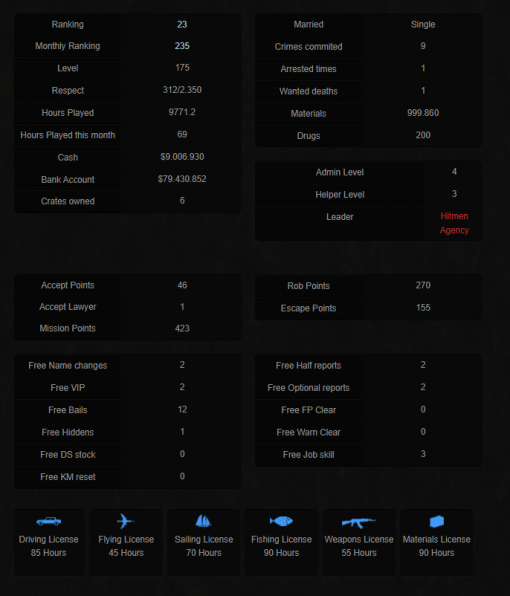
The second table contains information regarding the player's social status on the RPG server such as (image #2):
- Player's position in the top.
- Player's position in the top for activity from the previous month.
- Current account level.
- Number of respect points the player has at that moment.
- Number of hours played on the server.
- Number of hours played in that month on the server (real + sleep).
- Note: The number of hours in each month is reset at the beginning of each month on the 1st at 00:20..
- Number of real hours played in that month on the server.
- Amount of money the player has in hand.
- Amount of money the player has in the bank.
- Number of crates owned
-
The third table on the page contains the player's criminal record, which means it displays (image #2):
- If the player is married, the spouse's name.
- Number of crimes committed on the server.
- How many times the player has been arrested.
- How many times the player died having at least one wanted star, being sent to jail.
- Amount of materials the player has.
- Amount of drugs the player has.
-
The fourth table on the page contains information about the functions held by the player (image #2):
- Admin Level
- Helper Level
- Leader
-
The fifth and sixth tables on the page contain information about points accumulated by the player (image #2):
- Number of accept points that only police officers can accumulate to sell warrants.
- Number of warrants the player has to release someone from prison.
- Total number of mission points the player has.
- Number of rob points.
- Number of escape points.
-
The seventh table on the page contains the amounts of materials for the Craftsman job:
- Number of wood materials owned.
- Number of gold materials owned.
- Number of cotton materials owned.
- Number of silver materials owned.
-
The eighth and ninth tables on the page contain various freebies (image #2):
- Number of free name changes.
- Number of Free VIP.
- Number of Free Bails.
- Number of Free Hiddens.
- Number of Free DS stock.
- Number of Free KM reset.
- Number of Free Half report.
- Number of Free Optional report.
- Number of Free FP Clear.
- Number of Free Warn Clear.
- Number of Free Job skill.
- Number of Wheel Spins.
-
At the bottom of the page there are icons that illustrate the type of licenses a player can have. Under the icons, the number of hours remaining until the license expires is counted in real time (image #2).
-
The general information page includes a frame displaying the photo of the skin used in game.
-
In the upper left part of the page there are two icons, the first being a person with an envelope, and the second a simple person.
- The first icon is visible all the time, and using it you attach (if you want) your forum profile to the sa-mp account.
- The second icon is visible only when you have a Free Name change, and using it you can change your in-game name directly from the website (it only works if you are offline in the game).
Messages
On this page you can view the private messages you have received from senior staff, respectively those you have sent to players for various reasons. Only level 4+ admins can send you messages on the website. Messages will be sent when direct communication with the respective player involved in a certain situation is necessary (clan leaders, hacked accounts, etc.) and is not available in-game at the desired time.
The page displays all messages you have received/sent, respectively in which you have been added, along with the following information:
- Time: represents the date when the message was sent.
- From / To: represents from whom to whom the message was sent.
- Participants: represents the total number of participants in the message.
- Subject: represents the title of the message.
- Message Preview: represents a small part from the beginning of the message content.
- Last Reply: represents the date when the last reply was given in the message.
- View: represents a button through which you can see the entire content of the message.
The page with the message content also displays the following information and options:
- In the upper left the title of the message.
- In the upper right displays a representative image of the skin of each participant in the message.
- For STAFF, under the images mentioned above, the following options are also displayed:
- Option to add other participants in the message using their exact names.
- Option to remove someone added from the message (in case you made a mistake with the name).
- Option to close/open the respective message.
- Following which the content of the message will be displayed in the page in the following order:
- The first message in the page that is displayed represents the content that was initially written in the message when it was sent.
- The following messages in the page represent the answers of each participant in descending order, from the most recent to the oldest.
- Each sent reply contains the option to delete that reply, which will remain visible only to STAFF along with the date when it was deleted and by whom.
- Once a message has been closed by STAFF, no further replies can be added by anyone until it is reopened.
- Sent/received messages cannot be deleted. They remain in history as evidence for the purpose of their sending.
- Occasionally there is the possibility for very old messages to be deleted permanently by the server management when it is considered that they are no longer needed.
Marathon
On this page we can see all the information about the marathon when there is one in progress as follows:
- Marathon season number.
- Current version we have at the marathon.
- Players who unlock the PRO version benefit from rewards from both versions, regardless of when they decide to unlock the PRO version.
- Unlocking the PRO version can only be done in-game using the /marathon command > Get Pro and paying the amount of 3,000 Gold.
- The day we are at with the marathon along with the number of uncollected prizes from the marathon.
Under this information, each day of the marathon, the prizes from both versions as well as the current number of points out of the required number of points for that day are found.
Under the marathon prizes, the badge you receive automatically on your website profile when completing the marathon completely can be found.
At the bottom of the page we can also find a table with all the actions we can do on the server to get points as follows:
- Activity: represents the actual action we can do.
- Points: represents the number of points we receive when we do that action.
- Maximum Limit: represents the maximum number of points we can accumulate per day from that action.
- Actions that do not have an imposed limit mean they can be done until you reach the current day with the marathon.
- The limit reached by actions is automatically reset at midnight (00:00).
Achievements
Achievements are goals you can accomplish by completing tasks. You will be rewarded for completing them.
There are two types of achievements, for a total of 280 achievements:
- Those that can be obtained only once and others that measure how many times a certain action has occurred.
- For example, an achievement that is awarded once is to reach level 20, and an achievement that is counted is to organize an event.
Faction
The factions page contains various information and logs regarding the factions in which the player is active or has been active in the past.
There is a special table on this page that contains main data about the faction the player is part of:
- The faction the player is part of
- The date when the player joined
- The player's rank in that faction
- Number of warnings received in the faction
- Number of penalties in the faction (Faction Punish).
Top 5 faction ranks
In this table, the last 5 highest ranks obtained in the faction will be displayed.
Latest faction applications
The table displays the latest applications the player has submitted:
- Date when the application was submitted
- Faction name
- Application status (Accepted/Failed tests/Rejected/Invited to faction)
- A button to view the application
Latest Faction logs
The table in this category contains information collected when a faction leader executes faction-specific commands (example: Invitation to faction):
- Date when a command was executed by the faction leader
- Faction name
- Consequence resulting from the command execution by the leader
Faction activity
On this page, any member of a faction can view personal statistics accomplished in the faction during that week.
There are two branches into which weekly statistics can fall:
- Total items registered as valid in the statistics.
- Total items registered as invalid in the statistics.
Note: If the faction leader considers that a certain item of the statistics is corrupt/fraudulent/or has other problems, they can move it to the list of invalid items. Each faction has a certain policy regarding the validity of statistics items.
Faction reports
Any player can read their own reports accomplished over time in factions, with structured data displayed in a table informing you about:
- Name of the faction in which the respective activity report was registered
- Time interval (one week)
- Number of points accumulated for the report
Blacklist
The first table on the page will display the factions that have added you to the blacklist and the information needed to remove you from that list. The next table will display all factions to which you have been added to the blacklist over time.
Clan
The "Clan" branch has similar information to that of factions, displaying data about the latest applications submitted to clans and a log about the latest commands a clan leader has applied to the player.
The first table, which contains the latest applications submitted, will display the following information for each registered application:
- Date when the application was sent
- Clan name
- Application status (Accepted/Rejected/Invited)
- A View button, which once pressed, will redirect you to the application page.
Job
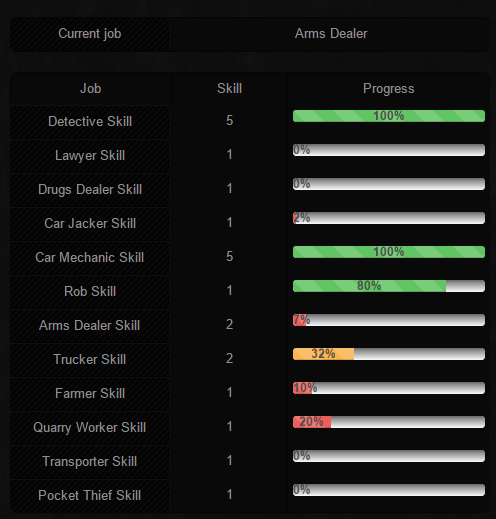
By accessing the Job page, the website will provide you with two tables (image #3).
The data of the first table shows the value of the skill held for each job, a progress bar to highlight the evolution from skill 1 to skill 5, respectively skill 10 where applicable, as well as the name of the job you are employed at that moment.
Note: The information present in the table is in the form: Job name - Skill value - Progress bar. The first row of the table is in the form: Current job - Name of the job held at that moment.
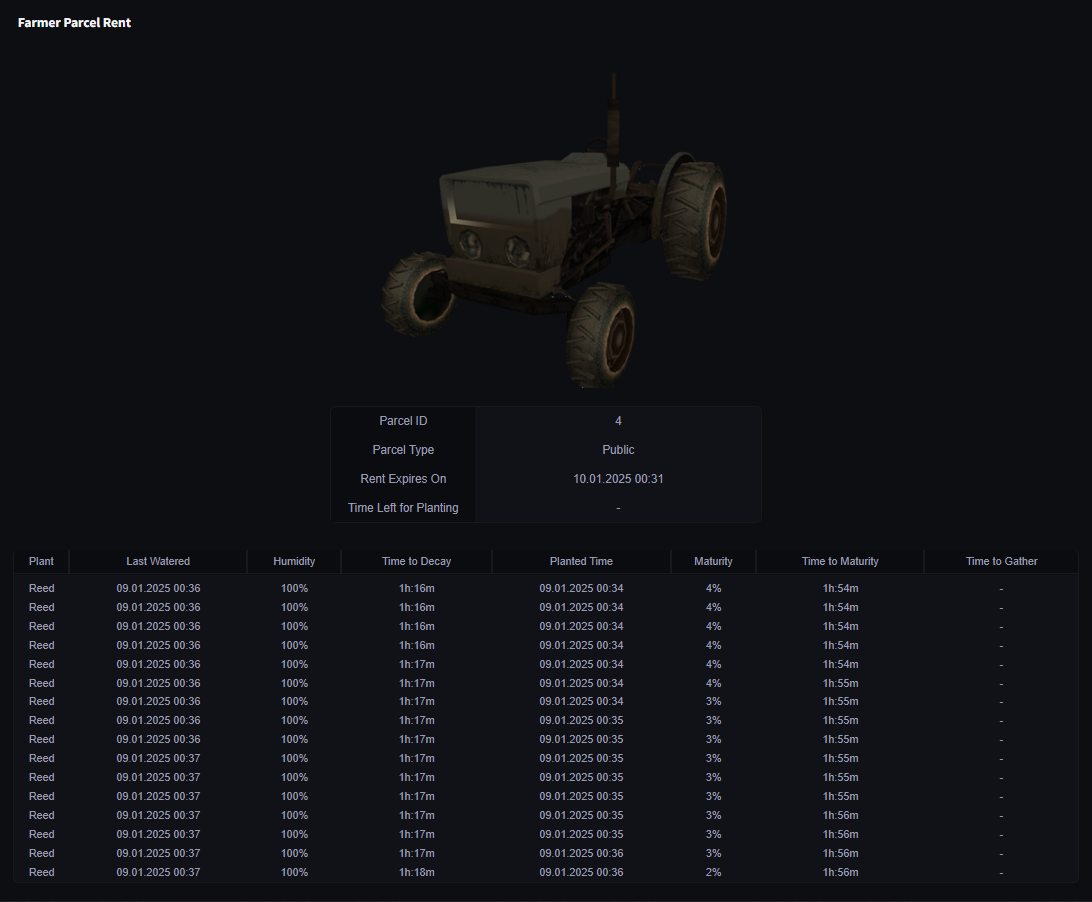
In the second table, information about the currently rented plot can be found, such as:
- Plot ID
- Plot type
- Plot expiration date
- Time remaining available to plant the crop.
Further down the page, another table can be found with each slot of the plot out of the 16 along with the following information:
- Plant type
- Last watering date
- Humidity
- Time until it starts to run out of water
- Date when it was planted
- Maturity
- Time until maturity
- Time remaining available to harvest.
Note: All this information is updated in real time.
Property
Vehicles
Here each player is informed about the status of their garage and can view data about their own vehicles, even having a preview of them. For each vehicle owned, the following information is displayed:
- A representative image of the vehicle.
- Vehicle ID on the server.
- Vehicle model.
- Price for which the vehicle was purchased from the Dealership (if purchased from it).
- Dealership selling price of the vehicle at the time of purchase from it.
- Way the vehicle was purchased
- Dealership: means the vehicle was purchased exclusively from the Dealership with in-game money.
- Shop: means the vehicle was either purchased from the premium Dealership with gold/received from crates/bought from the special shop with client euros/etc.
- IDs of the colors applied at that moment on the vehicle (primary and secondary).
- Total kilometers driven by the vehicle.
- Approximate number of days since its purchase.
- Total number of insurances available for the vehicle.
- Vehicle status (locked/unlocked).
- Existence of VIP.
- A button called Map, which, when pressed, will redirect you to a page containing an image of the San Andreas map. On the image available on the page, a red dot is inscribed, which represents the location where the vehicle is parked (/park to set a new location).
- A button called For Sale, which, when pressed, will put the vehicle for sale on the website.
Business
Only if you own a certain business, the page will display an informative table about its characteristics, presenting you with:
- Unique ID of the business.
- Business name, set by the owner in-game using the /bizname command.
- Minimum level a player must have to be able to take possession of the respective building.
- Money value of the business safe.
- Tax value set for the respective business.
- Estimated value of the business.
- A button (Map), which, when pressed, will redirect you to another page. On that page the website will provide you with an entire game map that has a red dot on it. The red dot on the map represents the location of the business.
Below, a graph will be built containing information about the business activity in the last 30 days.
- Business profit in that hour
House
General Info
This page has an informative table about the characteristics of your own house, or the house you are renting. The table includes:
- House ID on the server.
- In-game name of the house.
- House type (here the number of rooms is also displayed).
- Interior ID of the house.
- House level (required for purchase).
- House door status (locked/unlocked).
- House rent status (rentable/not rentable).
- Rent price.
- Amount of money collected by the owner in the house safe.
- Healing upgrade status.
- Armor upgrade status (for police).
- Number of slots of the purchased garage of the house.
- A button (Map), which, when pressed, will redirect you to another page. On that page the website will provide you with an entire game map that has a red dot on it. The red dot on the map represents the location of the player's residence/where the player is renting.
- Total number of tenants of the house.
- Number of tenants online at the time of accessing the page.
- A button (Evict All), which, when pressed, will evict all current tenants of the house from rent.
- A button (For Sale), which, when pressed, you can place the house you own for sale to receive offers from other players.
House Renters
The page displays a table containing various information about tenants:
- Name.
- Date of last authentication on the server.
- Level.
- Amount of respect points.
- Number of hours played.
- Faction.
- Rank held in the faction.
- Current job.
Bunker
The page displays information about the current bunker you own:
- A representative image with the bunker.
- Bunker name.
- Total amount of money earned from the bunker.
- Bunker tier along with a progress bar for it.
- Amount of supplies along with maximum amount of supplies.
- Amount of stock along with maximum amount of stock.
- Security upgrade status.
- Staff upgrade status.
- Equipment upgrade status.
- Supervisor upgrade status.
- Date and time when the bunker was purchased.
Skins
The page displays all the skins you own, it is divided into 5 categories:
Onyx Skins
- This category displays all skins that have been upgraded to Onyx.
- The skin image contains a specific color to more easily identify skins of this type.
- Under the skin image the following information is found:
- Skin ID.
- Skin type.
- First bonus and its value.
- Second bonus and its value.
- Third bonus and its value.
- Fourth bonus and its value.
Diamond Skins
- This category displays all skins that have been upgraded to Diamond.
- The skin image contains a specific color to more easily identify skins of this type.
- Under the skin image the following information is found:
- Skin ID.
- Skin type.
- First bonus and its value.
- Second bonus and its value.
Platinum Skins
- This category displays all owned Platinum skins.
- The skin image contains a specific color to more easily identify skins of this type.
- Under the skin image the following information is found:
- Skin ID.
- Skin type.
- Skin value in money.
- Skin value in gold.
Silver/Bronze Skins
- These pages display all owned Silver and Bronze skins respectively.
- Under the skin image the following information is found:
- Skin ID.
- Skin type.
- Skin value in money.
- Skin value in gold.
Crates
The page displays at the top the total number of crates you own, and at the bottom a table is displayed indicating the number of boxes held of each type of crate.
Safeboxes
The following two pages are found on this page.
1. Safeboxes
Displays at the top the total number of safeboxes you own, and at the bottom each safebox is displayed with a representative image and the following information:
- SafeboxID: represents the safebox ID on the server. It helps you realize in the Safebox Logs page in which safebox things were stored or from which safebox things were extracted.
- Name: represents the safebox name chosen in-game.
- Capacity: represents the occupied capacity out of the total capacity of the safebox.
- Materials: represents the number of materials stored in the safebox.
- Drugs: represents the number of materials stored in the safebox.
- 9mm: represents the number of bullets for the 9mm weapon stored in the safebox.
- Deagle: represents the number of bullets for the Desert-Eagle weapon stored in the safebox.
- Shotgun: represents the number of bullets for the Shotgun weapon stored in the safebox.
- Combat: represents the number of bullets for the Combat-Shotgun weapon stored in the safebox.
- MP5: represents the number of bullets for the MP5 weapon stored in the safebox.
- AK-47: represents the number of bullets for the AK-47 weapon stored in the safebox.
- M4: represents the number of bullets for the M4 weapon stored in the safebox.
- TEC-9: represents the number of bullets for the TEC-9 weapon stored in the safebox.
- Rifle: represents the number of bullets for the Rifle weapon stored in the safebox.
- Sniper: represents the number of bullets for the Sniper weapon stored in the safebox.
2. Safebox Logs
Displays logs for each safebox, both when storing in it and when extracting from it in the following columns:
- Date: displays the date when the deposits/extractions were made.
- Name: displays the in-game name of the safebox in/from which deposits/extractions were made.
- Safebox ID: displays the safebox ID in which deposits/extractions were made.
- Type: displays what you deposited/extracted in/from the safebox.
- Value: displays the amount deposited/extracted in/from the safebox.
- If the value is positive it means it was deposited in the safebox.
- If the value is negative it means it was extracted from the safebox.
Skin Tickets
The page displays in the upper left the total number of tickets and fragments you own, and at the bottom a table is displayed indicating the number of fragments and tickets held.
Chest Rewards
The page displays progress on the Chest Reward (Chest) in-game along with other information such as:
- Current tier you are at.
- Prize status (whether it can be collected or not).
- Progress on the respective tier (number of real hours played out of the total required number).
Also on this page, a table can be found with each level of the tier, the number of hours played required and its prizes.
My Stats
Each player has two types of user bars on this page. The respective bars actually represent 2 photos on which various aspects of an account are inscribed. To make public one or both bars, all you have to do is copy the source code provided right under these photos and place it in any posting form on the forum, or even on your own websites.
User bars include:
- Your name
- Name of the faction you are part of
- Rank held in the faction
- Name of the job you are employed at
- Account level
- Respect points held at that moment
- Total number of hours played on one of the B-Zone RPG servers
- Number of warnings received from administrators
- Player status (Online/Offline)
Friends
The "Friends" page is accessed so that a player can view the number of friends they have and be informed about certain aspects of them, as follows:
- Player's name and status (Online/Offline)
- Their level
- Number of respect points held at that moment
- Number of hours played on one of the B-Zone RPG servers
- Name of the faction the player is part of
- Rank held in the faction
- Name of the job the player is employed at
- Total number of warnings received from administrators
Referrals
On this page each of you can find out your own Referral ID, some information about that ID being presented right on the page. Also here is a list of all players brought to the server using your Referral ID, and below information regarding the total earnings resulting from the advancement of recruits in level. Some details about how to invite your friends to the game can be found on this page.
The recruit table includes:
- Recruited player's name and their status (Online or Offline)
- Date and time when they registered their account
- Date and time when the player last authenticated on the server.
- Number of hours spent in-game
- Their level
- Total respect points held by the recruit at that moment
- Total amount of money earned from the recruit's advancement in level.
- Total amount of money collected.
- Total number of respect points earned from the recruit's advancement in level.
- Total number of respect points collected.
Name log/2FA log/Mute log/Jail log/Warn log/Ban log
These six pages contain absolutely personal information about punishments received on the server (mute log, jail log, warn log and ban log), information showing how many times a player has changed their in-game name (name log) and information showing if the two-step authenticator has been activated or deactivated on the account, with additional information being presented.
Security
Being one of the most important pages of any account, here each player can maintain their own security by changing their email address or activating their two-step authentication. By accessing the page, pressing on the first option you have the possibility to view the current email address associated with your account, as well as access the Change button to change your email address.
If you want to change your email address, but the current email address is not confirmed, then to do this you will use the /changeemail command directly in-game. For more details about changing the email address associated with the account, in-game, access the Email page. If the current email address is confirmed, then the website allows changing it using the Change button.
If you select the second option, you will receive an email with the account pin if you have a valid email on the account.
If you select the third option, Activate Two Factor Authentication, and press the Activate or Deactivate button (depending on the case) you will be able to activate/deactivate two-step authentication. More information about this as well as an installation tutorial can be found here.
Last logins
To maintain your account security, the administration has provided you with this page where you can monitor when, from where, from what IP your account was accessed both in-game and on the website. The table available on the page contains information about:
- Date when the action was recorded
- IP used for authentication (on website or server)
- Approximate location from where the action was performed
- Type of authentication (on website or on server)
Note: You should keep in mind that the location displayed in the table is generated based on IP and may be inaccurate in some cases.
Gold transactions
Here you can see each addition or reduction of the amount of gold held by a player. The page also provides the date of modification of the gold amount, as well as the type of transaction (example: gift, shop). The informative table on this page will display:
- Date when the transaction was made
- Transaction type
- Gold value involved in the transaction
Shop transactions
Gold is an important part of a player's statistics, therefore you can view from this page what items have been purchased using the real in-game currency, using the /shop command. To familiarize yourself with the page information, you need to know the table composition, which contains for each transaction:
- Name of the purchased item
- Gold price of the item
- Discount resulting from the transaction, if it was made during a discount period
- Date when the transaction was made
Quest Map
Here you can see what pickups remain to be taken from the active Quest.
Badges
On this page you can manage the badges you have unlocked. In the first part of the page you find some instructions on how to use the system and at the bottom you find a table with badges along with the following information:
- Badge Icon: displays the image of the respective badge.
- Badge Name: displays the name of the respective badge.
- Unlocked: displays the date and time when you received that badge.
- Sort: displays a box with the order number of the respective badge (the order being descending).
- For a badge to be displayed first (from top to bottom) you must assign it the value 6.
- For a badge to be displayed second (from top to bottom) you must assign it the value 5.
- For a badge to be displayed third (from top to bottom) you must assign it the value 4.
- For a badge to be displayed fourth (from top to bottom) you must assign it the value 3.
- For a badge to be displayed fifth (from top to bottom) you must assign it the value 2.
- For a badge to be displayed sixth (from top to bottom) you must assign it the value 1.
- If you don't want a specific place for a certain badge you must assign it the value 0.
- Hidden: displays a box that if you check, that badge will not be displayed on the profile anymore.
After you have made the desired modifications you need to use the Save button to save.
Note: A maximum of 6 badges can be displayed on the profile.
List of Available Badges
General Badges




INFO: To withdraw the required amount, a ticket is opened on the website.








INFO: A ticket is opened on the website to award this badge.











Please note: All these badges are awarded automatically by the server when you are eligible for the respective badge, if you have not received it, it means that you are most likely not currently eligible to receive it.
They can also be awarded by STAFF if somehow they were either not awarded automatically, or are not made to be awarded automatically.
Special Badges
















Custom Badges
The possibility of purchasing custom badges is offered in exchange for the amount of 3000 Gold (bought from the shop in the last 7 days). For more details you can open a ticket on the website where you will receive all the necessary details about purchasing your own badge.