Economy
Info
For the Economy system you can enter here.
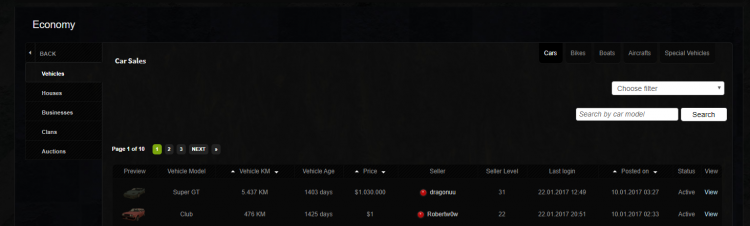
General characteristics
The Economy system has the main purpose of ensuring advertising of players' personal goods that they want to sell or exchange for another personal good.
The tab includes the following information:
- Vehicles
- Houses
- Shop Houses
- Businesses
- Clans
- Skins
- Auctions
Vehicles
In this sub-page you can see the vehicles put up for sale by players to make them an offer along with the following information:
- Preview: displays a small representative image of the vehicle.
- Vehicle Model: displays the vehicle name.
- Vehicle KM: displays the total number of kilometers of the vehicle.
- Vehicle Age: displays the total (approximate) number of days of the vehicle.
- Price: displays the price chosen by the player to sell the vehicle.
- Seller: displays the name of the player who listed the vehicle.
- Seller Level: displays the level of the player who listed the vehicle.
- Last Login: displays the seller's last login date to the server.
- Posted on: displays the listing date of the vehicle by the seller.
- Status: displays the listing status, whether it is still valid or not (whether it was purchased or not).
- View: displays another separate page where you can make an offer to the seller, you can see in more detail the offers made by players as well as their comments.
Houses
In this tab you can see the houses put up for sale by players and you can make them an offer along with the following information:
- Preview: displays a small representative image of the house interior.
- House ID: displays the in-game ID of the house.
- House Interior: displays the house interior ID.
- Price: displays the price chosen by the player to sell the house.
- Seller: displays the name of the player who listed the house.
- Seller Level: displays the level of the player who listed the house.
- Last Login: displays the seller's last login date to the server.
- Posted on: displays the listing date of the house by the seller.
- Status: displays the listing status, whether it is still valid or not (whether it was purchased or not).
- View: displays another separate page where you can make an offer to the seller, you can see in more detail the offers made by players as well as their comments.
Shop Houses
In this page you can see the level 999 houses existing on the server and available for purchase depending on the interior type along with the following information:
- Preview: displays a small representative image of the house interior.
- House ID: displays the in-game ID of the house.
- House Interior: displays the house interior ID.
- House Level: displays the house level.
- Price: displays the house price in client euros.
- The displayed price is not negotiable, it is a fixed price.
- Houses whose price is not available means that the price varies depending on the size of the house, location area, desired interior.
- City: displays the city where the house is located.
- Location: displays a button called Map through which you are redirected to another page where you can see the in-game map along with a red dot where the house is located.
Below the entire list of houses, there is some more information about what you need to do to purchase the house along with what you need to know before agreeing to purchase the house.
Businesses
In this tab you can see the businesses put up for sale by players and you can make them an offer along with the following information:
- Preview: displays a small representative image of the business interior.
- Business ID: displays the in-game ID of the business.
- Business Category: displays the business type.
- Price: displays the price chosen by the player to sell the business.
- Seller: displays the name of the player who listed the business.
- Seller Level: displays the level of the player who listed the business.
- Last Login: displays the seller's last login date to the server.
- Posted on: displays the listing date of the business by the seller.
- Status: displays the listing status, whether it is still valid or not (whether it was purchased or not).
- View: displays another separate page where you can make an offer to the seller, you can see in more detail the offers made by players as well as their comments.
Clans
In this tab you can see the clans put up for sale by players and you can make them an offer along with the following information:
- Clan Name: displays the clan name.
- Clan Tag: displays the clan tag.
- Slots: displays the maximum number of slots the clan has.
- Price: displays the price chosen by the player to sell the clan.
- Seller: displays the name of the player who listed the clan.
- Seller Level: displays the level of the player who listed the clan.
- Last Login: displays the seller's last login date to the server.
- Posted on: displays the listing date of the clan by the seller.
- Status: displays the listing status, whether it is still valid or not (whether it was purchased or not).
- View: displays another separate page where you can make an offer to the seller, you can see in more detail the offers made by players as well as their comments.
Skins
In this tab you can see the Diamond/Onyx skins put up for sale by players and you can make them an offer along with the following information:
- Preview: displays a small image of the skin.
- Skin ID: displays the skin ID.
- Skin Type: displays the skin type.
- Rarity: displays the skin rarity.
- Price: displays the price set by the seller.
- Seller: displays the seller's name.
- Seller Level: displays the level of the player who listed the clan.
- Last Login: displays the seller's last login date to the server.
- Posted on: displays the listing date of the clan by the seller.
- Status: displays the listing status, whether it is still valid or not (whether it was purchased or not).
- View: displays another separate page where you can make an offer to the seller, you can see in more detail the offers made by players as well as their comments.
Auctions
In this tab you can see all auctions that have taken place and will take place along with the following information:
- Property ID: displays the in-game ID of the property.
- Preview: displays a representative image of the business, respectively the house interior.
- Interior / Category: displays the business type if the auction is for a business, respectively the house interior ID in the case of houses.
- Type: displays the auction type.
- Added by: displays the name of the admin who initiated the auction.
- Time: displays the date and time when the auction was initiated.
- Status: displays the auction status.
To participate in such an auction you must be online in game at 20:00 on the same date when the auction was initiated by the admin (on the same day).
How do I make an offer to someone?
To make an offer you must press the View button next to the good listed by the player, then the Oferta / Offer button which displays an interface from where you can offer an amount of money, other goods in exchange (if the seller accepts exchanges) as well as a comment for the offer made.
How do I respond to someone's offer?
If you access your own listing, you will have the option to accept or reject the offer received from a player.
Then that offer will appear with Offer Rejected respectively Offer Accepted to be visible to everyone.
How do I take possession of a good?
To take possession of the good (if the seller accepted your offer), you will have to meet the seller of the good in game and make a deal through the /trade command.
How do I put a good up for sale?
- Access one of the RPG sites.
- Log in to the site with your in-game username and password.
- From the menu on the left choose My Account and then Property.
- For the desired good press the Place for sale basket and from the interface that appears choose the desired price as well as whether or not you accept other goods in exchange.