Vehicle 3D Text
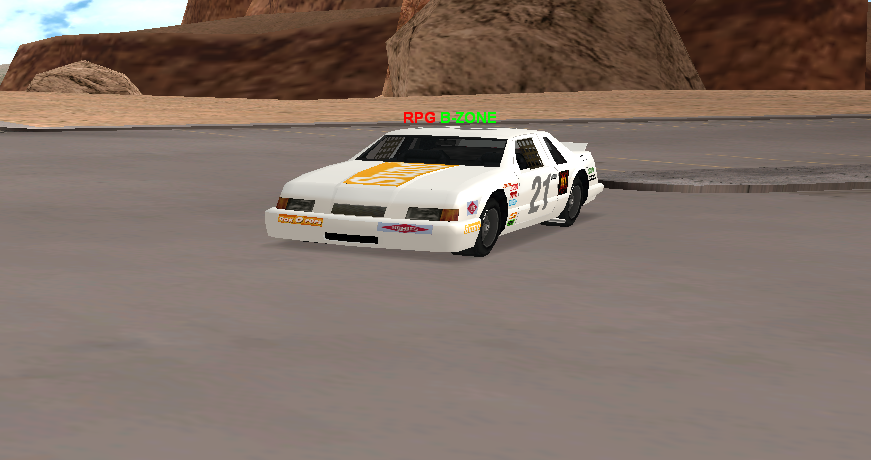
A 3D text represents text that can be viewed by all players within a certain radius from any angle as long as it is on their screen.
Such text can be added to your own vehicle in exchange for the amount of 600 Gold.
Warning
The gold prices presented on this page are standard. It is possible that in-game products may be cheaper if you make the purchase during a discount period.
This 3D text is attached to the respective vehicle and behaves approximately like VIP text with some differences:
- 3D text can be added to any owned vehicle, regardless of whether it is premium or not.
- 3D text is dynamic, which means you can customize the text as you wish.
- RPG B-ZONE
- RPG B-ZONE COMMUNITY
- 3D text gives you the possibility of using special characters.
- 'RPG B-ZONE'
- ``RPG B-ZONE``
- 3D text cannot be styled.
- Cannot be made bold, italic, underline, etc.
- 3D text accepts a maximum of 60 characters in it.
- 3D text can be positioned around the car within a radius of 10 positive units.
- Negative values cannot be used for the number of units, the smallest value being 0.
- 3D text appears/disappears with the vehicle (when spawned, destroyed, etc).
Just like VIP text, 3D text will also be lost when the vehicle is sold to another player and must be purchased again if desired.
How to Add This 3D Text?
To add this 3D text, you need the amount of 600 Gold in your account at the time of purchase and to follow these steps:
- Use the /vehicles command
- Choose the desired vehicle.
- Choose the option 'Add 3D text on car'.
Once you confirm that you are sure of this purchase, the 3D text will be placed on the car, this being one preset by the server.
Also from the /vehicles command you will find 3 new options for modifying it, namely: text modification, color and position.
Modifying Text/Color/Position
- To modify the text: choose the text modification option, then in the box that appears enter the text you want to be displayed.
- To modify the color: choose the color modification option, then in the box that appears enter an RGB color code, you can use this site for choosing the color (Color Picker).
- To modify the position: choose the position modification option, then from the displayed dialog choose the coordinate axis you want to modify (X / Y / Z).
- Once the coordinate axis is chosen, you must enter a value between 0 (preset position) and 10 (maximum allowed distance from the preset position).
- For texts in multiple colors: choose the text modification option, then in the box that appears enter the text together with the desired color codes in the following format:
- {FF0000}B-Zone {00FF00}Community
- The desired color code is always entered between braces.